|


|
Toolbar
You will find the following buttons on the toolbar:

|
|
| 1. Open | Allows you to open an existing project file. |
| 2. Save | Allows you to save your project. |
| 3. Publish | Allows you to publish your project. |
| 4. Pointer | When selected, allows you to select, move, resize and delete plan elements. |
| 5. Pan | Allows you to pan across the screen. |
| 6. Preview | Allows you to preview your work (tooltips, pop-ups,...). |
| 7. Draw Walls |
Allows you to draw new walls. See also Walls and Fencing. |
| 8. Default Wall Properties |
Opens the Default Wall Properties dialog box, where you can set the default wall properties. See also Walls and Fencing. |
| 9. Draw Fences |
Allows you to draw new fences. See also Walls and Fencing. |
| 10. Default Fence Properties |
Opens the Default Fence Properties dialog box, where you can set the default fence properties. See also Walls and Fencing. |
| 11. Objects Library |
Allows you to open/close the Objects Library window. See also Objects Library. |
| 12. Markers & Icons | Allows you to add markers and icons to your plan. |
| 13. Add Text |
Allows you to add text to your plan. See also Text. |
| 14. Default Text Properties |
Opens the Default Text Properties dialog box, where you can set the default text properties. See also Text. |
| 15. Add Dimension Lines |
Allows you to add dimension lines to your plan. See also Dimension Lines. |
| 16. Default Dimension Line Properties |
Opens the Default Dimension Line Properties dialog box, where you can set the default dimension line properties. See also Dimension Lines. |
| 17. Add Shape |
Allows you to add a new shape to your plan. See also Shapes. |
| 18. Shapes Menu |
Opens the Shapes menu, where you can select a shape type (Oval, Rectangle, Line or Polygon). See also Shapes. |
| 19. Add Background Image |
Allows you to add a new background image to your plan. See also Images. |
| 20. Add Image |
Allows you to add a new image to your plan. See also Images. |
| 21. Snap |
Allows you to change the Snap options (Position, Length and Angle). (The Snap feature applies only when you are working with the mouse.) |
| 22. Show/Hide |
Allows you to show or hide the grid, texts, dimension lines, ... |
| 23. Ruler |
Displays the ruler. |
| 24. Settings |
Opens the Settings dialog box. See also Settings Dialog Box. |
| 25. Pop-ups |
Opens the Pop-ups dialog box. See also Pop-ups Dialog Box. |
| 26. Imported Files |
Opens the Imported Files dialog box. See also Imported Files Dialog Box. |
| 27. Zoom Out | Decreases the zoom factor of the scene. |
| 28. Zoom In | Increases the zoom factor of the scene. |
| 29. Zoom Value | Displays the current zoom factor, also allows you to enter a new value. |
| 30. Zoom Menu | Opens the Zoom menu. |
Edit Buttons
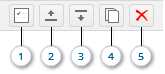
The following buttons appear when you select a plan element (wall, fence, object, text, dimension line, shape, image, area value label, or fill area):
|
|
| 1. Properties | Opens the properties dialog box for the selected element. |
| 3. Bring Forward | Moves the selected element up one level. |
| 2. Send Backward | Moves the selected element down one level. |
| 4. Duplicate | Creates a copy of the selected element. |
| 5. Delete | Deletes the selected element. |
|
Note
Depending on the selected element, only some of the buttons will be available. |
|
Export Buttons
The following buttons appear when you choose Export Image... from the File menu:

|
|
| 1. Exit Export Mode | Allows you to exit the export mode. |
| 3. Save | Allows you to save the selected area into a file. |
See also Export Image.
Print Buttons
The following buttons appear when you choose Print... from the File menu:

|
|
| 1. Exit Print Mode | Allows you to exit the print mode. |
| 3. Print | Allows you to send the selected area to the printer. |
See also Print.